
Sleek and stylish designs, high-quality displays, and excellent performance are a MacBook with dedicated graphics and the best processor. If your MacBook has higher-end processors like Intel Core i7 or i9 or Apple’s M1 chip so it is better for gaming.
Additionally, the larger screen of the Mac with high resolution makes the gaming experience more immersive and enjoyable. You can connect gaming peripherals like a gaming mouse, keyboard, or controller in the sufficient ports available on the Mac. A MacBook with a powerful graphics card, processor, and sufficient RAM can provide a good gaming experience. Is A MacBook good for gaming?
The answer to this question is well explained here, and you may say that MacBooks can be good for gaming, but it depends on the specific model and configuration. MacBook Pros, for example, are generally better suited for gaming due to their dedicated graphics cards and higher processing power, while MacBook Airs may struggle with more graphically demanding games. Let’s find how to play Genshin Impact on Mac.
Game Play Genshin Impact on Different Models of MAC
How to Play Genshin Impact on Mac Air?
The MacBook Air is a thin, light laptop with a 13-inch Retina display. You can get an Apple M1 chip or an Intel Core i5 processor with 8GB or 16GB of memory and 256GB to 2TB of storage.
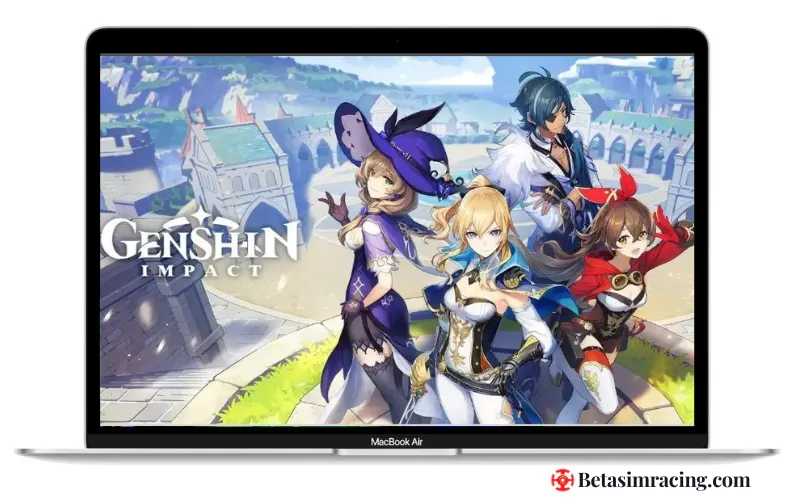
You can play Genshin Impact on Mac Air by using a virtual machine or a Windows emulator to run the game on your Mac Air. You can stream the game on your Mac Air using a cloud gaming service like GeForce Now.
How to Play Genshin Impact on MacBook Pro?
MacBook Pro is a more powerful laptop. It keeps 13-inch and 16-inch Retina displays. They are available with an Apple M1 chip or Intel Core processor.

To play Genshin Impact on MacBook Pro, you can use a Windows emulator like Wine or CrossOver to run the Windows version of the game on your MacBook Pro. You can use a virtual machine like VirtualBox or Parallels Desktop to install and run a Windows operating system on your MacBook Pro, then install and play Genshin Impact like you would on a PC.
How to Play Genshin Impact on MAC M1?
A native Apple Silicon game version can be the best for playing Genshin Impact installed by the Mac App Store. You can also use a Windows emulator like CrossOver or Parallels Desktop to run the Windows version of the game on your Mac M1.
How to Play Genshin Impact on Mac M1 with Keyboard?
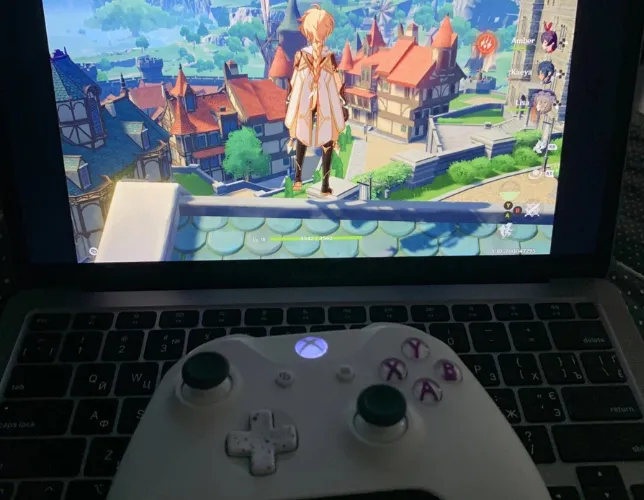
To play Genshin Impact on Mac M1 with a keyboard, you can use the native Apple Silicon version of the game available on the Mac App Store. Once the game is installed, you can connect a keyboard to your Mac and use the keyboard controls to play the game.
Alternatively, if you use a Windows emulator like CrossOver or Parallels Desktop to run the Windows version of the game on your Mac M1, you can also use the keyboard controls as you would on a PC.
How to Play Genshin Impact on MAC without Bootcamp?
You can use a virtual machine like VirtualBox or Parallels Desktop to install and run a Windows operating system on your Mac to lay it without a Boot camp. Once the virtual machine is set up, you can install and play the Windows version of Genshin Impact just like you would on a PC.
How To Get: Genshin Impact Kamera Red Creatures?
How to Play Genshin Impact on MAC without GeForce Now?
You can use a Windows emulator like Wine or CrossOver to run the Windows version of the game on your Mac. You can also use a virtual machine like VirtualBox or Parallels Desktop to install and run a Windows operating system on your Mac, then install and play Genshin Impact like you would on a PC.

Is there a Genshin Mac version?
There is not yet to be an official Mac version of Genshin Impact. However, several methods exist to play Genshin Impact on a Mac, such as Bootcamp or virtual machines.
Are all the games compatible with Mac?
Macs may have fewer game titles than PCs, as some games are incompatible with the macOS operating system.
How to Play Genshin Impact on MAC for Free?
To play Genshin Impact on Mac for free, you can use a Windows emulator such as Wine or PlayOnMac to run the Windows version of the game on your Mac. You can enjoy cloud gaming services like GeForce Now with a stable internet connection.
So if someone asks you, can we play Genshin Impact on Mac? You can answer Yes. However, there is currently no official Mac version of the game. You can use a Windows emulator like Wine or CrossOver, a virtual machine like VirtualBox or Parallels Desktop, or a cloud gaming service like GeForce Now to play the game on your Mac.
Conclusion

With 15 years of experience as a PC hardware technician, Ben brings a practical, hands-on approach to our PC Components section. He specializes in real-world testing and longevity analysis, explaining how components perform over time. His guides help readers understand the practical side of owning and maintaining a gaming PC.