
When your computer refuses to power on or behaves erratically, it could be due to issues with the power supply or motherboard. Distinguishing between the two can save time and resources in troubleshooting. In this detailed guide, we’ll explore how to identify whether your power supply is bad or your motherboard is defective. From common signs to manual testing methods, we’ve got you covered.
The power supply and motherboard are integral components of your computer, and issues with either can lead to system failures. Recognizing the symptoms and employing diagnostic techniques are crucial for effective troubleshooting.
How to Tell if Power Supply Is Bad or Motherboard Is Defective?
3 Common Signs of Power Supply Issues:
- No Power: If your computer shows no signs of life, the power supply might be failing to deliver power to the components.
- Random Shutdowns: Intermittent shutdowns or reboots can indicate fluctuations in power output.
- Burning Smell: A burnt or acrid smell near the power supply suggests a potential issue.
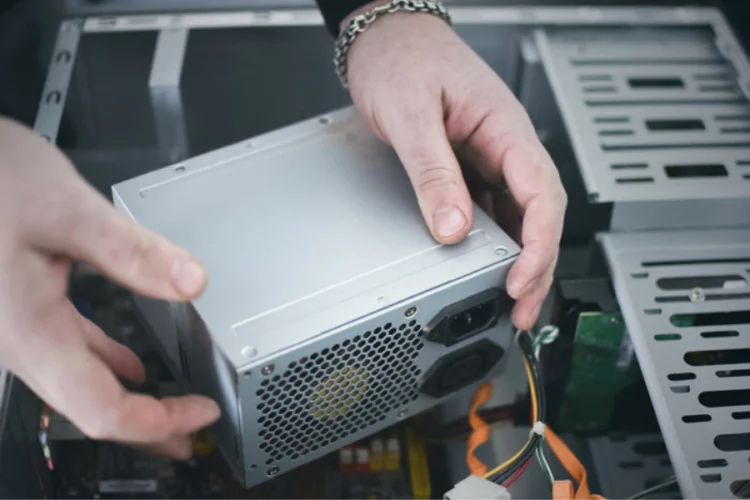
3 Common Signs of Motherboard Issues:
- No POST (Power On Self-Test): If your computer doesn’t pass the initial POST, the motherboard may be faulty.
- Beeping Sounds: Certain beep codes during startup can indicate motherboard problems.
- Visual Inspection: Look for damaged capacitors or burnt areas on the motherboard.
Is My Power Supply Dead or Is It a Motherboard Issue?
Test the Power Supply:
- Paperclip Test: By jumping the green and black wires on the 24-pin connector, you can check if the power supply turns on.
- Multimeter Test: Measure the voltage output of the power supply using a multimeter.
Test the Motherboard:
- POST Test: Remove all components except the CPU, RAM, and GPU to check for a successful POST.
- Visual Inspection: Look for physical damage or burnt areas on the motherboard.
How Can I Test My Power Supply Without a Motherboard?
Invest in a power supply tester to check the voltage output and functionality without connecting it to the motherboard.
Signs of Motherboard Failure
- No Power: A completely unresponsive computer.
- Beep Codes: A series of beeps during startup indicating specific motherboard issues.
- No Display: Failure to initialize the display during boot.
Manually Test My Power Supply
- Unplug and Disconnect: Ensure the power supply is unplugged and disconnected from the motherboard.
- Paperclip Test: Use a paperclip to short the green wire (PS_ON) and any black wire (COM) on the 24-pin connector.
- Observe Fan Movement: If the fan in the power supply doesn’t spin, it might be faulty.
What Causes a Motherboard to Not Power On?
- Faulty Power Supply: If the power supply fails, it won’t provide the necessary power to the motherboard.
- Damaged Components: A short circuit or damaged components on the motherboard can prevent it from powering on.
- BIOS/UEFI Issues: Corrupted BIOS/UEFI firmware can hinder the motherboard’s ability to start.
How to tell if the power supply is bad or the motherboard is defective?
Common signs include no power, random shutdowns (power supply), and no POST or beep codes (motherboard).
Is my power supply dead, or is it a motherboard issue?
Perform tests like the paperclip test or use a multimeter to check the power supply. For the motherboard, conduct a POST test and visual inspection.
How can I test my power supply without a motherboard?
Invest in a power supply tester, which allows you to check the functionality and voltage output without connecting it to the motherboard.
What are the signs of motherboard failure?
Signs include no power, beep codes during startup, and a failure to initialize the display.
How do I manually test my power supply?
Perform a paperclip test by shorting the green and black wires on the 24-pin connector. Observe the fan movement.
What causes a motherboard to not power on?
Causes include a faulty power supply, damaged components, or issues with the BIOS/UEFI firmware.

With 15 years of experience as a PC hardware technician, Ben brings a practical, hands-on approach to our PC Components section. He specializes in real-world testing and longevity analysis, explaining how components perform over time. His guides help readers understand the practical side of owning and maintaining a gaming PC.