
Having firsthand experience using Discord, I can attest to its power in creating thriving communities and fostering meaningful connections. As someone who has extensively utilized Discord, I vouch for its exceptional ability to seamlessly integrate instant messaging, voice chat, and video calling.
It also provides a versatile platform for collaboration, communication, and engagement. Learn about using a microphone for Discord on PS4 and get insights into the Discord Beta Version for PS4 users. Read this writing and discover how to use Discord on PS4 without PC.
How to Get Discord on PS4?
Despite lacking an official Discord app for PlayStation 4, I’ve overcome this challenge by finding workarounds. These methods let me utilize Discord on my PS4, accessing its versatile communication features like voice, text, and media sharing.
I actively engage with gaming communities, coordinate strategies with teammates, and share thrilling gaming moments. Discord proves invaluable for seamless communication and collaboration within the gaming community, even without an official PS4 app.
How to Use Discord on PS4 without PC?
These steps guide you on how to use Discord on PS4 without a PC.
- Step 1: Access the PS4 Browser
- From your console’s home screen, navigate to the “Library” option.
- Select “Applications.”
- Open the “Internet Browser.”
- Step 2: Enter Discord’s Website:
- In the PS4 browser, use the on-screen or connected USB keyboard to type “discord.com” in the search bar.
- Press “Go” to navigate to the Discord website.
- Step 3: Sign in with Your Discord Account:
- Once on the Discord website, you can sign in with your existing Discord account.
- Use the on-screen or connected USB keyboard to enter your username and password.
- Follow the login instructions provided by Discord to access your account.
- Step 4: Discord on PS4:
- After signing in, you can access Discord’s web version on your PS4.
- Remember that functionality and usability may be limited compared to using Discord on a PC or mobile device.
How to Use Discord on PS4 Without Mixamp?
Read the following steps. You can set up a system to use Discord without a MixAmp.
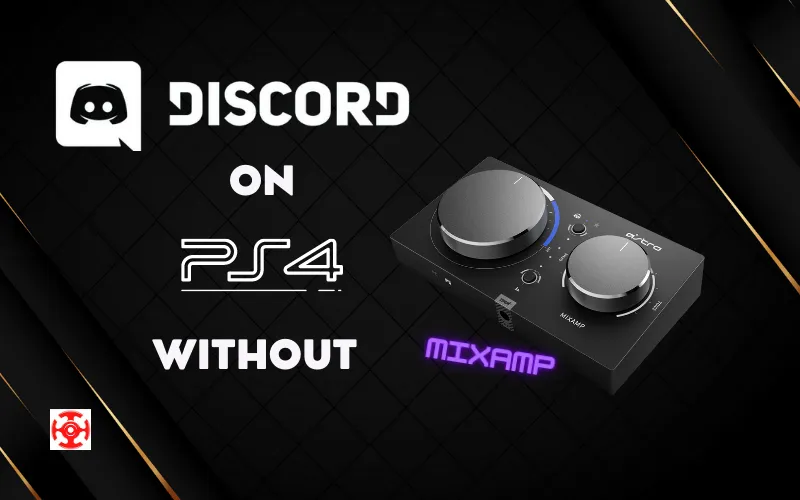
- Ensure that your PS4 and PC are connected to the same network.
- Download the Discord app on your PC.
- Connect your PS4 controller to your PC using an audio cable.
- Adjust the audio settings on your PS4 by following these steps.
Navigate to Settings > Devices on your PS4.
Select >Audio Devices.
Set “Output to Headphones” to “All Audio.” - Start a game on your PS4 and launch Discord on your PC.
How to Stream on Discord from PS4?
There are various ways to stream your PS4 on Discord, two popular methods to explore. the ‘capture card’ and ‘remote play.’ Get ready to dive into the details and learn about streaming your PS4 gameplay on Discord. Let’s unlock the secrets together.
Capture Card Method
It is a technical way to stream PS4 to Discord with excellent visual and audio quality. You’ll need gaming headphones and additional equipment. Here’s a simplified guide:
- Download and install Discord on your PC or Mac, ensuring your computer meets the minimum requirements.
- Connect your PS4 to your PC using a capture card or HDMI cable.
- Open Discord and go to User Settings. Under “Voice & Video,” choose “Video Capture Device” and select your capture card or HDMI connection.
- Start the game on your PS4 and press your controller’s “Share” button. Select “Broadcast Gameplay” from the Share menu.
- Choose “Discord” as the streaming platform and log in to your Discord account.
- Customize your stream settings, including title, description, and privacy. Decide whether to include microphone and webcam inputs.
- Click “Start Streaming” to go live on Discord, where friends and others can watch and interact with you in real time.
Related Article: How To Adjust Coilovers for Smooth Riding? Answer
Remote Play Method
This method is simpler and more accessible than using a Capture Card. It doesn’t require a complex streaming setup, saving time and money for PS4 users.
Here’s a concise guide:
- Download and install the Remote Play app and Discord on your PC or Mac, by ensuring the minimum requirements of the system.
- In your PS4 settings, choose “Remote Play Connection Settings.” Select “Register Manually” under “Add Device” and enter the displayed code on your computer.
- After successfully connecting your PS4 and computer, open the Remote Play app and select your PS4 from the device list.
- Connect your controller to your PC via a USB cable and keep your PS4 powered on during the streaming session.
- Open Discord and join a voice channel or call.
- Click the “share my screen” option in Discord to bring up settings for adjusting quality, FPS, screen selection, and audio output.
- Once you’ve made the necessary adjustments, click the “go live” button, select a game, and enjoy streaming your PS4 games and content.
How to Use a Microphone for Discord on PS4?
Two options are using which you can follow a microphone for Discord on your PS4. - Using a Headset with a built-in microphone:
● Connect a headset with a built-in microphone to your PS4 controller.
● Make sure the headset is compatible with the PS4.
● Access Discord on your PS4 and join voice chats to communicate with others. - Smartphone + PS Remote Play:
● If you don’t have a PS4-compatible headset, you can use your smartphone and the PS Remote Play app.
● Download and install the PS Remote Play app on your smartphone.
● Then Connect it to the same Wi-Fi network as your PS4.
● Launch the PS Remote Play app and sign in to your PSN account.
● Use the app to remotely control your PS4 on your smartphone.
● Access Discord on your smartphone and join voice chats while using the PS Remote Play app to control your PS4.
Can You Read Discord Messages on PS4 Without PC?
You can read Discord messages on your PS4 by accessing the Discord web app. Using your PS4 controller, you can type responses and engage in text chats.
How to Use Discord Beta Version on PS4?
There is no Discord Beta version available for PS4. You can use a PC or Mac to access the latest Discord features and enjoy the benefits of experimental functionalities.
How to Use Discord Voice Chat on PS4?
All games do not support Discord voice chat. You can use in-game voice chat. Stay connected and enjoy gaming on PS4 with Discord or in-game voice chat.
Is there Discord for Xbox and PS4?
Discord is available for Xbox but not for PlayStation 4.
Can You Use Discord on PS4 While Playing?
You can chat with your buddies while rocking your favorite PS4 games.

As our senior Console Gaming Specialist, Mack explores the entire console ecosystem, from hardware nuances to first-party exclusives. With over 20 years of gaming experience, his reviews and guides focus on game design, narrative impact, and the overall player experience. He aims to help readers discover which games will truly resonate with them.