
In the world of high-performance computing, cable clutter is the enemy of a clean and efficient workspace. Imagine a single, powerful connection that handles your stunning 4K video, transfers massive files in seconds, and charges your powerful laptop—all at the same time. That’s not a futuristic dream; it’s the reality of Thunderbolt technology.
Thunderbolt monitors are the ultimate hub for productivity enthusiasts, creative professionals, and gamers who demand speed and simplicity. By consolidating multiple connections into one bi-directional port, they streamline your desk and unlock new levels of multitasking. But with different versions and features, choosing the right one can be daunting.
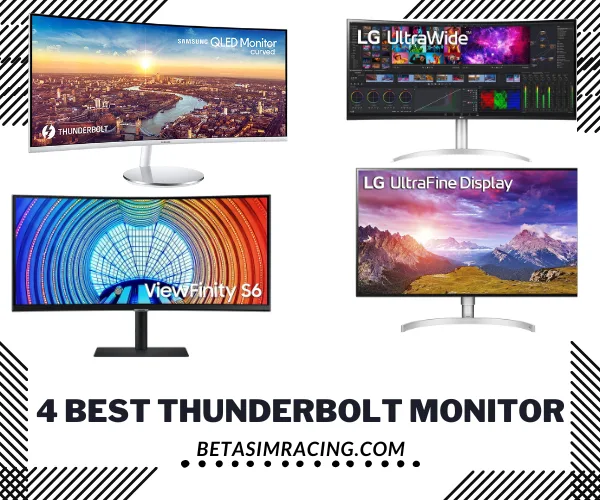
This guide will break down the top 4 best Thunderbolt monitors on the market. We’ll explore how their unique features, from curved ultrawide displays to professional-grade color accuracy, can supercharge your workflow and gaming experience.
Understanding the Power of a Single Cable: What is a Thunderbolt Monitor?
Before we dive into our top picks, let’s clarify what makes these monitors special. Think of a standard USB-C port as a busy two-lane road—it gets the job done. Now, imagine a Thunderbolt port as a multi-lane superhighway built on that same physical connection. It uses the same USB-C connector but packs immensely more power.
This superhighway can simultaneously carry:
- High-Resolution Video: Easily drive 4K, 5K, and even 8K displays.
- High-Speed Data: Transfer files at up to 40Gbps—fast enough to move a full 4K movie in under 30 seconds.
- Power Delivery: Charge even the most power-hungry laptops with up to 100W of power.
This “one cable to rule them all” approach is the core benefit, providing a clean, powerful, and versatile hub for your entire setup. If you want to know more about the Mac-specific integration, you can explore details on what is Thunderbolt Bridge on Mac.
The Best Thunderbolt Monitors: A Quick Comparison
For those who need to make a quick decision, this table summarizes the key specifications of our featured Thunderbolt monitors.
| Feature | SAMSUNG J791 | LG 32UL950-W | LG 40WP95C-W | SAMSUNG ViewFinity S6 |
| Screen Size | 34-inch Curved | 32-inch Flat | 40-inch Curved | 34-inch Curved |
| Resolution | 3440 x 1440 (WQHD) | 3840 x 2160 (4K UHD) | 5120 x 2160 (5K2K) | 3440 x 1440 (WQHD) |
| Panel Type | VA | Nano IPS | Nano IPS | VA |
| Refresh Rate | 100Hz | 60Hz | 72Hz | 100Hz |
| Thunderbolt | Thunderbolt 3 (x2) | Thunderbolt 3 (x2) | Thunderbolt 4 (x2) | Thunderbolt 4 (x1) |
| Power Delivery | 85W | 60W | 96W | 90W |
| Color Gamut | 125% sRGB | 98% DCI-P3 | 98% DCI-P3 | 1 Billion Colors, HDR10 |
| Best For | Immersive Gaming & Multitasking | 4K Video Editing & Design | Professional Creative Work | All-Around Productivity |
In-Depth Reviews of the Best Thunderbolt Monitors
1. SAMSUNG J791 34-Inch — Best Curved Thunderbolt 3 Monitor
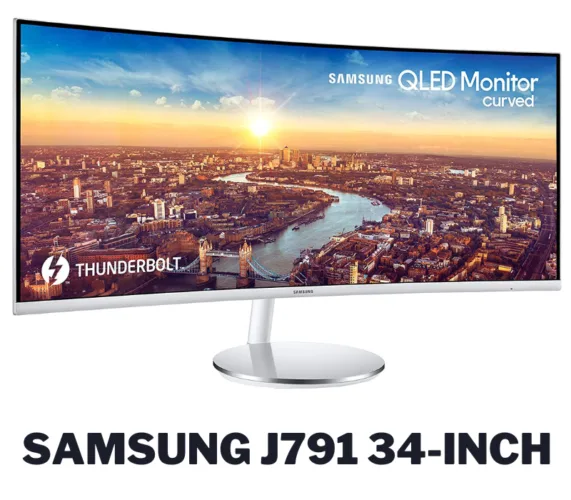
The SAMSUNG J791 stands out as a pioneer, being one of the first curved monitors to integrate the power of Thunderbolt 3. It offers a fantastic blend of immersive visuals and high-speed connectivity, making it a versatile choice for both work and play.
Key Specifications
- Screen Size: 34 inches
- Display Resolution: 3440 x 1440 Pixels
- Refresh Rate: 100Hz
- Special Feature: Thunderbolt 3
- Contrast Ratio: 3000:1
- Inputs: DP, HDMI, USB, 2x Thunderbolt 3
- Aspect Ratio: 21:9
Design and Display Quality
This monitor features a Quantum Dot (VA) panel, delivering deep blacks and a high 3000:1 contrast ratio. With 125% sRGB color space coverage, colors are vibrant and rich. The 1500R curvature wraps around your field of view, creating a more immersive experience than a typical flat screen. While it lacks official G-Sync, its AMD FreeSync support and 100Hz refresh rate provide a smooth, tear-free experience for gamers with compatible AMD graphics cards. For those wondering, does a monitor affect FPS, a higher refresh rate like this allows you to see the high frames your GPU produces.
Creative Work and Productivity
For multitaskers, the 21:9 ultrawide aspect ratio is a game-changer. Samsung’s intuitive screen-splitting software allows you to use Picture-in-Picture (PIP) and Picture-by-Picture (PBP) modes, effectively turning one monitor into two. The dual Thunderbolt 3 ports provide a single-cable solution to link and dock your laptop, transmitting video and data while delivering up to 85W of charging power.
Gaming Performance
Gamers will appreciate the smooth motion clarity afforded by the 100Hz refresh rate. The immersive curve pulls you into the game world, making it a great option for story-driven adventures and open-world racing games. The VA panel ensures that fast-paced action is fluid and engaging.
Our Verdict
The SAMSUNG J791 is an exceptional all-rounder. It delivers the multitasking prowess of an ultrawide, the immersive quality of a curved screen, and the powerful, single-cable convenience of Thunderbolt 3. It’s an ideal choice for users who split their time between productivity and gaming.
Benefits:
- First curved monitor with Intel Thunderbolt 3
- Excellent multitasking with PBP and PIP modes
- One cable to link, dock, and charge (up to 85W)
- Deep blacks and vibrant colors with 125% sRGB
- Smooth 100Hz refresh rate with AMD FreeSync
Drawbacks:
- No official HDR support
- Not as color-accurate out of the box as IPS panels
2. LG 32UL950-W 32-Inch — Best 4K Thunderbolt 3 for Creatives
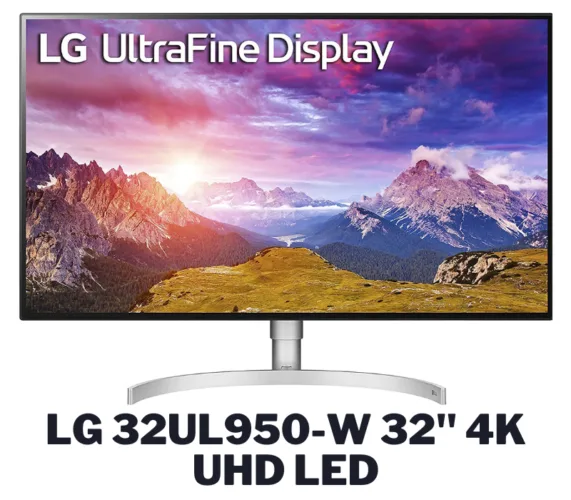
For professionals who demand pixel-perfect accuracy, the LG 32UL950-W is a formidable tool. It combines a stunning 4K resolution with professional-grade color and the high-speed connectivity of Thunderbolt 3, making it a favorite among video editors, photographers, and graphic designers.
Key Specifications
- Screen Size: 32 inches
- Display Resolution: 3840 x 2160 Pixels
- Refresh Rate: 60Hz
- Special Feature: Thunderbolt 3, DisplayHDR 600
- Brightness: 450 cd/m² (Typical)
- Inputs: DP, HDMI, USB, 2x Thunderbolt 3
- Color Accuracy: 98% DCI-P3
Design and Display Quality
This monitor boasts a sleek, virtually borderless design that looks sharp on any desk. The stand is highly adjustable, offering tilt, height, and pivot adjustments, allowing you to rotate it into a vertical orientation—a huge plus for coders and writers. While you could use a standard best dual monitor stand, its clean aesthetic works well on its own.
Professional-Grade Color
This is where the 32UL950-W truly shines. Its Nano IPS panel with 98% DCI-P3 color gamut coverage ensures breathtakingly accurate colors. This is crucial for creative work where color fidelity is non-negotiable. It’s also VESA DisplayHDR 600 certified, providing a dynamic contrast between the brightest whites and darkest blacks, bringing HDR content to life. It’s easily one of the best color accurate monitor options with Thunderbolt connectivity.
Connectivity and Performance
Equipped with one Thunderbolt 3 input and one output, this monitor supports a 4K daisy-chain setup. You can connect two 4K monitors to your Mac or PC using a single Thunderbolt 3 port, decluttering your workspace significantly. When transferring files to an external SSD via the monitor’s port, it maintains impressive speeds, making it a true productivity hub. However, its 60W power delivery may not be enough to charge larger, high-performance laptops under full load.
Our Verdict
The LG 32UL950-W is a creative professional’s dream. The combination of 4K resolution, elite color accuracy, and the ability to build a daisy-chained dual-monitor setup makes it an incredibly powerful and efficient tool for any color-critical work.
Benefits:
- Stunning 4K resolution with incredible detail
- Professional-grade color with 98% DCI-P3
- VESA DisplayHDR 600 for enhanced contrast
- Supports 4K daisy-chaining with Thunderbolt 3
- Sleek, virtually borderless design with full adjustability
Drawback:
- 60W power delivery might be insufficient for some high-end laptops
3. LG 40WP95C-W 40-Inch — Best Ultrawide 5K2K Thunderbolt 4 Monitor
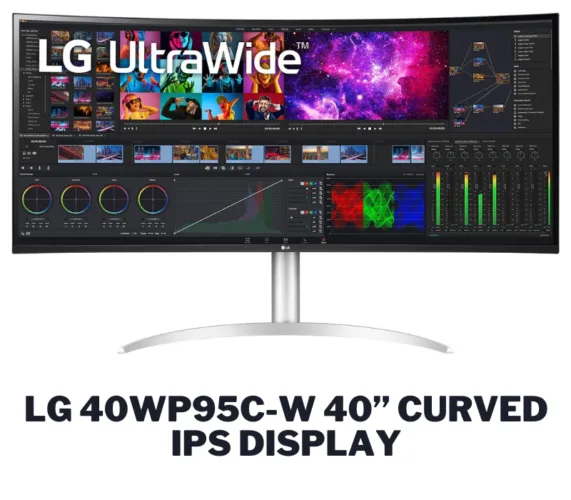
If you believe bigger is better, the LG 40WP95C-W is the monitor for you. This massive 40-inch curved ultrawide doesn’t just offer more screen real estate; it provides a stunning 5K2K resolution and the latest Thunderbolt 4 connectivity for the ultimate professional workstation.
Key Specifications
- Screen Size: 40 inches
- Display Resolution: 5120 x 2160 Pixels (5K2K)
- Refresh Rate: 72Hz
- Color Accuracy: 98% DCI-P3
- Special Feature: Thunderbolt 4, Curved Nano IPS
- Inputs: DP, HDMI, USB, 2x Thunderbolt 4
- Aspect Ratio: 21:9
Expansive Curved Display
The 40WP95C-W’s main attraction is its 5K2K WUHD resolution on a curved Nano IPS panel. This gives you the horizontal space of an ultrawide with the vertical pixel density of a 4K monitor—perfect for viewing multiple windows side-by-side without sacrificing clarity. The 21:9 aspect ratio is fantastic for cinematic content and provides an expansive canvas for video editing timelines. The difference between an ultrawide vs regular monitor is most pronounced at this scale.
Next-Gen Connectivity
Featuring two Thunderbolt 4 ports, this monitor is built for the future. Thunderbolt 4 guarantees more consistent performance and enhanced security. It delivers up to 96W of power, enough to charge a MacBook Pro or other high-performance laptop. The daisy-chaining capabilities are top-notch, allowing you to connect a second high-resolution monitor and other peripherals through a single cable to your computer.
Features for Power Users
LG has packed this monitor with features for professionals. The auto-brightness sensor adjusts the screen’s luminosity based on ambient light, reducing eye strain. The 98% DCI-P3 color coverage makes it suitable for color-critical tasks, from video editing to special effects. It also includes two 10-watt speakers that deliver respectable audio, though dedicated speakers are always recommended for serious audio work.
Our Verdict
The LG 40WP95C-W is an absolute powerhouse for professionals who need the maximum amount of screen real estate and resolution. Its 5K2K display and future-proof Thunderbolt 4 ports create an unparalleled workspace for multitasking and creative endeavors.
Benefits:
- Massive 40-inch 5K2K resolution for ultimate multitasking
- Excellent color accuracy with 98% DCI-P3
- Future-proof Thunderbolt 4 with 96W power delivery
- Ergonomic design with auto-brightness sensor
- Single-cable daisy-chaining for complex setups
Drawback:
- The 72Hz refresh rate is good but not ideal for high-end gaming
4. SAMSUNG 34-Inch ViewFinity S6 — Best Value Thunderbolt 4 Monitor
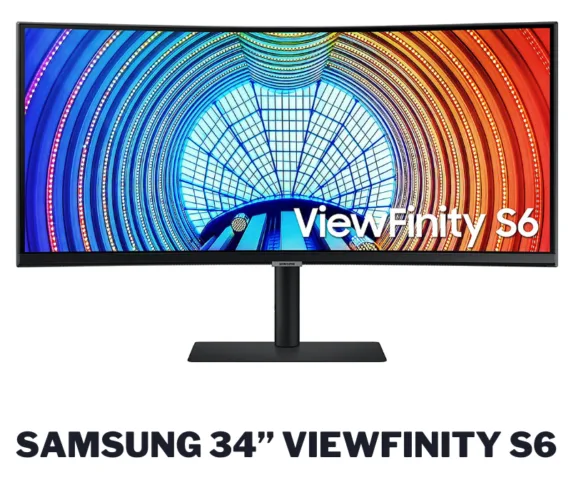
The SAMSUNG ViewFinity S6 brings the latest Thunderbolt 4 technology into a more accessible package. It combines a sleek, curved ultrawide display with modern connectivity and user-friendly features, making it a strong contender for anyone looking to build an efficient and modern work environment.
Key Specifications
- Screen Size: 34 inches
- Display Resolution: 3440 x 1440 Pixels
- Refresh Rate: 100Hz
- Processing speed: 40 Gbps
- Special Feature: Thunderbolt 4, Built-in KVM
- Inputs: DP, HDMI, USB, 1x Thunderbolt 4, LAN (Ethernet)
- Aspect Ratio: 21:9
Immersive Display and Design
Like the J791, the ViewFinity S6 features an immersive curved screen that enhances depth perception and minimizes eye strain. The QHD resolution (3440×1440) provides sharp, clear visuals, while HDR10 support enhances the dynamic range for more lifelike images. The 100Hz refresh rate ensures that all motion, from scrolling through documents to light gaming, is exceptionally smooth.
Future-Proof Connectivity
The inclusion of a Thunderbolt 4 port makes this monitor a fantastic central hub. You can transmit data and video while delivering up to 90W of power to your laptop with a single cable. What sets the S6 apart is its built-in LAN port, allowing you to connect your laptop to a stable, wired Ethernet network through the monitor itself—perfect for offices or homes with spotty Wi-Fi.
Built for Multitasking
The ViewFinity S6 is designed for productivity. Its ergonomic stand allows for extensive tilt, swivel, and height adjustments. The ultrawide aspect ratio is ideal for viewing multiple applications at once, and with a built-in KVM switch, you can control two different computers connected to the monitor with a single keyboard and mouse. This is a huge benefit for users who work with both a desktop and a laptop. If you’re wondering what motherboard do I have that can support this, most modern systems with Thunderbolt or USB4 will be compatible.
Our Verdict
The SAMSUNG ViewFinity S6 offers an incredible value proposition. It delivers the most desirable features of a modern workstation monitor—a curved ultrawide display, a 100Hz refresh rate, and future-proof Thunderbolt 4 connectivity with a built-in LAN port—at a competitive price point.
Benefits:
- Crystal clear QHD resolution with HDR10
- Thunderbolt 4 port with 90W power delivery
- Integrated LAN (Ethernet) port for stable internet
- Smooth 100Hz refresh rate
- Efficient multitasking with a built-in KVM switch
Drawback:
- Only one Thunderbolt 4 port limits daisy-chaining options
How to Choose the Best Thunderbolt Monitor: A Buyer’s Guide
Selecting the right Thunderbolt monitor depends on your specific needs. Consider these key factors before making your purchase.
Thunderbolt 3 vs. Thunderbolt 4: What’s the Real Difference?
While both offer the same maximum 40Gbps bandwidth, Thunderbolt 4 enforces stricter minimum requirements, making it a more reliable and capable standard.
- Thunderbolt 3: Can support one 4K monitor. Minimum PCIe data speed is 16Gbps.
- Thunderbolt 4: Must support at least two 4K monitors or one 8K monitor. Minimum PCIe data speed is doubled to 32Gbps. It also improves security with mandatory DMA protection and allows for more complex hub and docking setups.
Bottom Line: Thunderbolt 3 is still incredibly powerful and sufficient for most users. Thunderbolt 4 offers a more robust, future-proof guarantee of performance, especially for users planning complex, multi-monitor setups.
Screen Size, Resolution, and Aspect Ratio
- Size: Monitors over 27 inches provide a more immersive experience. 32-40 inches is the sweet spot for 4K and ultrawide models.
- Resolution: For creative work, 4K (3840×2160) is the standard. Ultrawide resolutions like WQHD (3440×1440) are great for balancing gaming and productivity, while 5K2K (5120×2160) offers the best of both worlds.
- Aspect Ratio: Standard is 16:9. Ultrawide (21:9) offers a wider field of view, excellent for multitasking and cinematic gaming.
Refresh Rate, Response Time, and Gaming
- Refresh Rate (Hz): This is how many times your screen updates per second. 60-75Hz is fine for productivity and creative work. For gaming, 100Hz or higher provides a noticeably smoother experience. You can even learn how to safely overclock a monitor for a little extra performance, but it’s best to buy one that meets your needs out of the box.
- Response Time: Lower is better, reducing motion blur. Look for 5ms or less for gaming.
- Adaptive Sync: FreeSync (for AMD) and G-Sync (for NVIDIA) prevent screen tearing for a smoother gaming session.
Panel Type (IPS vs. VA)
- IPS (In-Plane Switching): Known for the best color accuracy and viewing angles. The top choice for photographers, designers, and video editors.
- VA (Vertical Alignment): Offers the best contrast ratios, resulting in deep, inky blacks. A great middle ground, often with higher refresh rates than IPS at a similar price.
Color Accuracy (sRGB, DCI-P3, Adobe RGB)
- sRGB: The standard color space for the web. 100% sRGB is good; 125%+ is excellent for vibrant colors.
- DCI-P3: A wider gamut used in digital cinema. 95% or higher is a must-have for professional video work.
- Adobe RGB: Another wide gamut preferred by professional photographers for print work.
Power Delivery (PD): Charge Your Laptop with One Cable
This is a key feature of Thunderbolt. Check the wattage (W) of the monitor’s power delivery.
- 60W: Sufficient for smaller ultrabooks like a MacBook Air.
- 85W-96W: Ideal for more powerful laptops like a MacBook Pro or a Dell XPS 15.
Connectivity and Daisy-Chaining
All of these monitors have additional HDMI and DisplayPort inputs. The real power comes from having two Thunderbolt ports, which allows you to “daisy-chain” devices. You can connect your laptop to the monitor, and then a second monitor or a high-speed external drive to the monitor’s second Thunderbolt port, all working through a single connection to your computer.
Frequently Asked Questions (FAQ)
What is the main advantage of a Thunderbolt monitor?
The primary advantage is simplicity and power through a single cable. A Thunderbolt monitor acts as a docking station, allowing you to transmit high-resolution video, transfer data at incredibly high speeds (up to 40Gbps), and charge your laptop simultaneously.
What’s the difference between Thunderbolt and a standard USB-C monitor?
While they use the same physical connector, Thunderbolt is a much more powerful protocol. A standard USB-C monitor might support video and some data transfer (often at slower USB 3.1 speeds), but Thunderbolt guarantees a massive 40Gbps bandwidth for video and data, plus robust power delivery and daisy-chaining capabilities.
Is a Thunderbolt 4 monitor worth it over Thunderbolt 3?
For most people, a Thunderbolt 3 monitor is perfectly adequate and powerful. However, a Thunderbolt 4 monitor is worth the investment if you:
Plan to run a dual 4K monitor setup.
Need the fastest possible data transfer speeds for external storage (like NVMe SSDs).
Want to ensure the most stable, secure, and future-proof connection.
Are Thunderbolt monitors good for gaming?
Yes, they can be excellent for gaming, especially models with high refresh rates (100Hz+), low response times, and Adaptive Sync technology like the SAMSUNG J791 and ViewFinity S6. While some are geared toward creative professionals with 60Hz/72Hz refresh rates, their high resolutions and vibrant colors still provide a stunning gaming experience, particularly in sim racing games and cinematic titles.
Can I use a Thunderbolt monitor with a computer that only has USB-C?
Yes, but with limitations. You can connect a Thunderbolt monitor to a standard USB-C port, but it will operate in “USB-C Alt Mode.” This means you’ll get a video signal, but you won’t get the high-speed 40Gbps data transfer or daisy-chaining capabilities of Thunderbolt. Your performance will be limited to what the USB-C port can provide.
Do I need a special cable for a Thunderbolt monitor?
Yes, to get the full 40Gbps performance, you must use a certified Thunderbolt 3 or Thunderbolt 4 cable. These cables are “active” or intelligently designed to handle the high bandwidth. While a standard USB-C cable might work for video, it will not deliver the full speed and features of the Thunderbolt connection.

With 15 years of experience as a PC hardware technician, Ben brings a practical, hands-on approach to our PC Components section. He specializes in real-world testing and longevity analysis, explaining how components perform over time. His guides help readers understand the practical side of owning and maintaining a gaming PC.